Mark Mager
How to Build a Record-Triggered Flow in Salesforce: Step by Step
Salesforce Flow can automate repetitive work without requiring Apex. In this example, we'll build a simple Record-Triggered Flow that automatically creates a follow-up Task when a Case is changed to High Priority.
The goal is simple:
Case Priority changes to High → Salesforce automatically creates a follow-up Task for the Case Owner.
Step 1: Create a New Flow
From Setup, search for Flows in Quick Find.
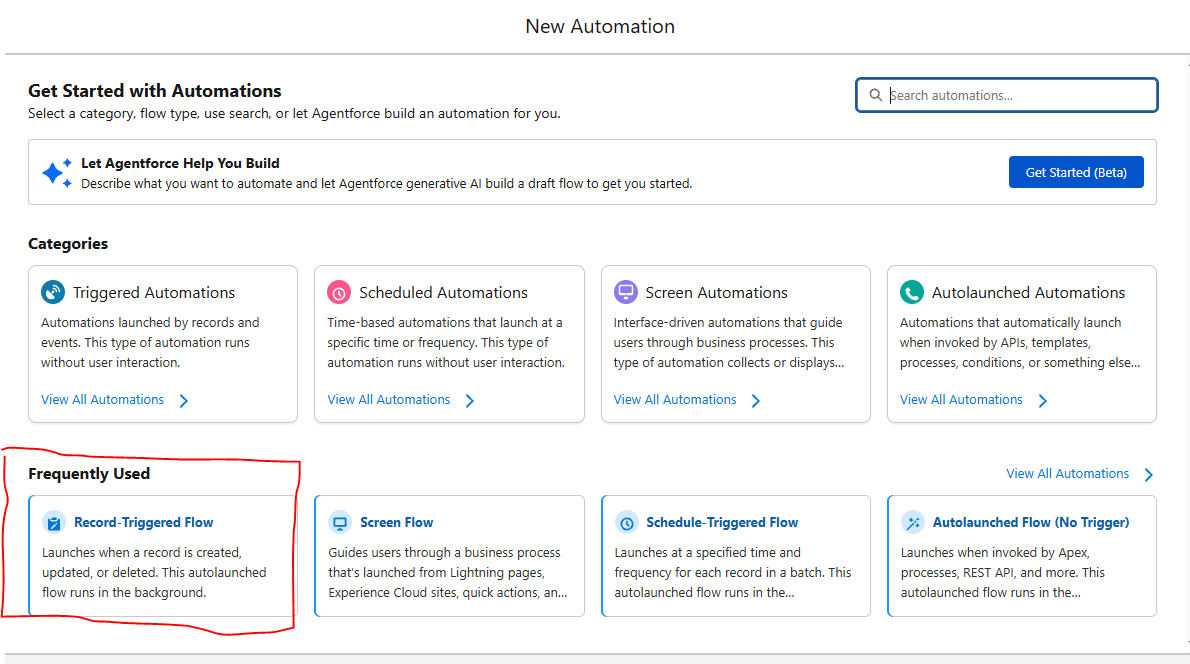
Select Flows → New Flow → Record-Triggered Flow.
Step 2: Configure the Trigger
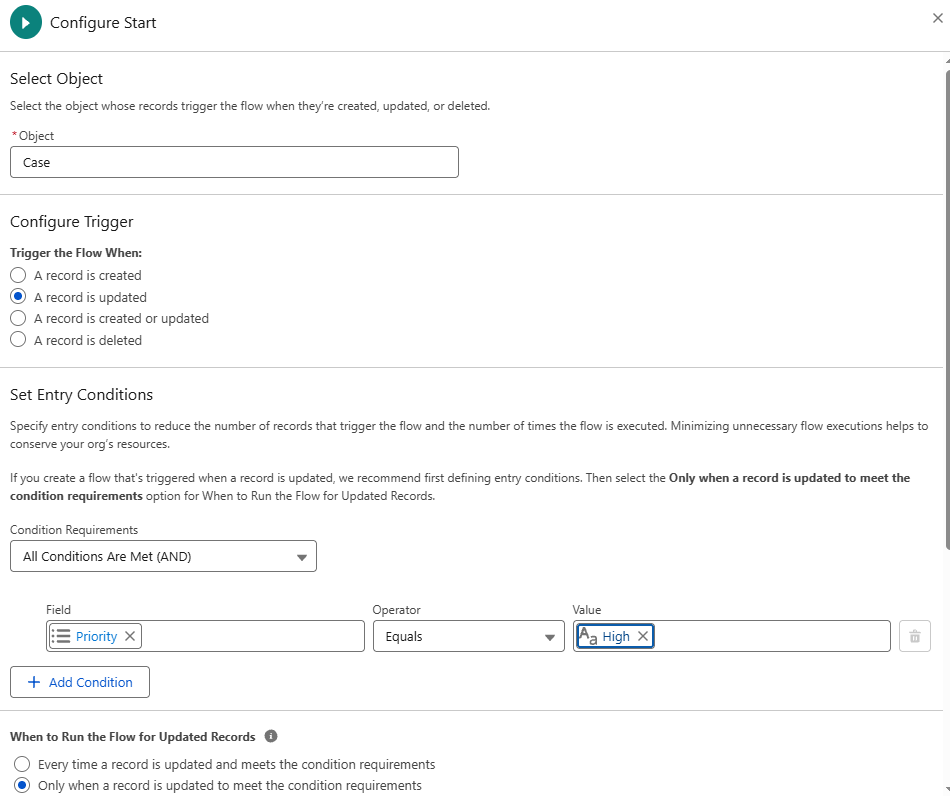
Select Case as the object.
Configure the Flow to run when:
A record is updated
Add the entry condition:
Priority Equals High
For When to Run the Flow for Updated Records, select:
Only when a record is updated to meet the condition requirements
This is important. Without it, you could create another Task every time someone edits a Case that is already High Priority.
Step 3: Choose How the Flow Runs
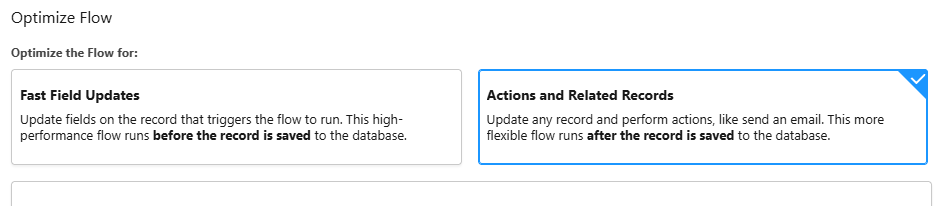
Under Optimize the Flow For, select:
Actions and Related Records
We're creating a Task, so we need an after-save Flow rather than a Fast Field Updates Flow.
Step 4: Add a Create Records Element
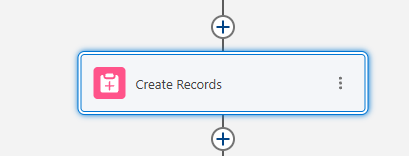
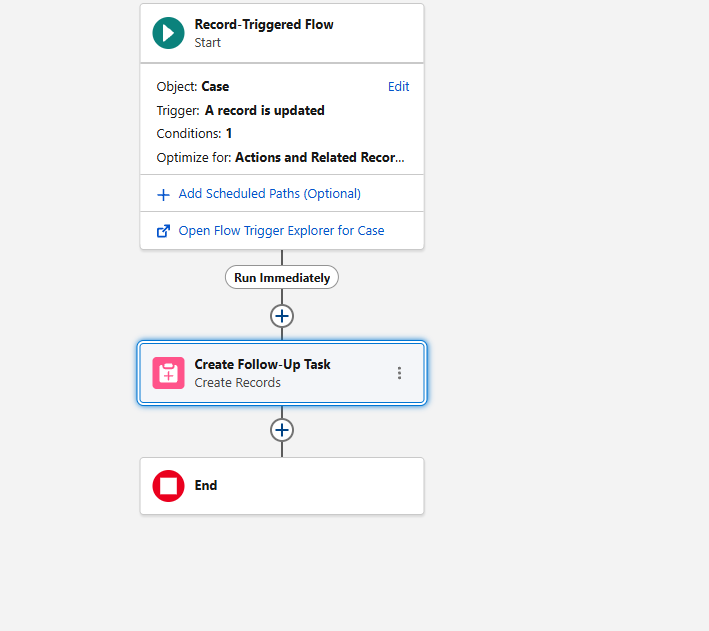
Click the + below the Start element and select Create Records.
Give the element a descriptive name such as:
Create Follow-Up Task
Select Task as the object.
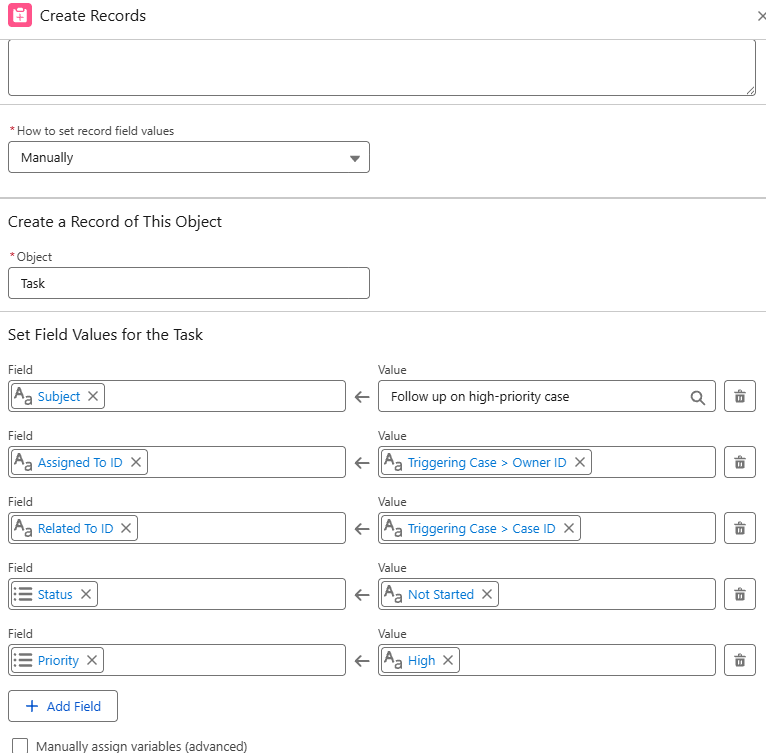
Step 5: Map the Task Fields
Now tell Salesforce what information the new Task should contain.
For example:
| Task Field | Value |
|---|---|
| Subject | Follow up on high-priority case |
| OwnerId | $Record.OwnerId |
| WhatId | $Record.Id |
| Status | Not Started |
| Priority | High |
Using $Record.OwnerId assigns the Task to the same owner as the Case.
Using $Record.Id relates the Task back to the Case that triggered the automation.
Step 6: Save and Activate the Flow
Your completed Flow should now have two main elements:
Start → Create Follow-Up Task
Give the Flow a clear name, such as:
Case - Create Task for High Priority
Save the Flow and select Activate.
Step 7: Test the Flow
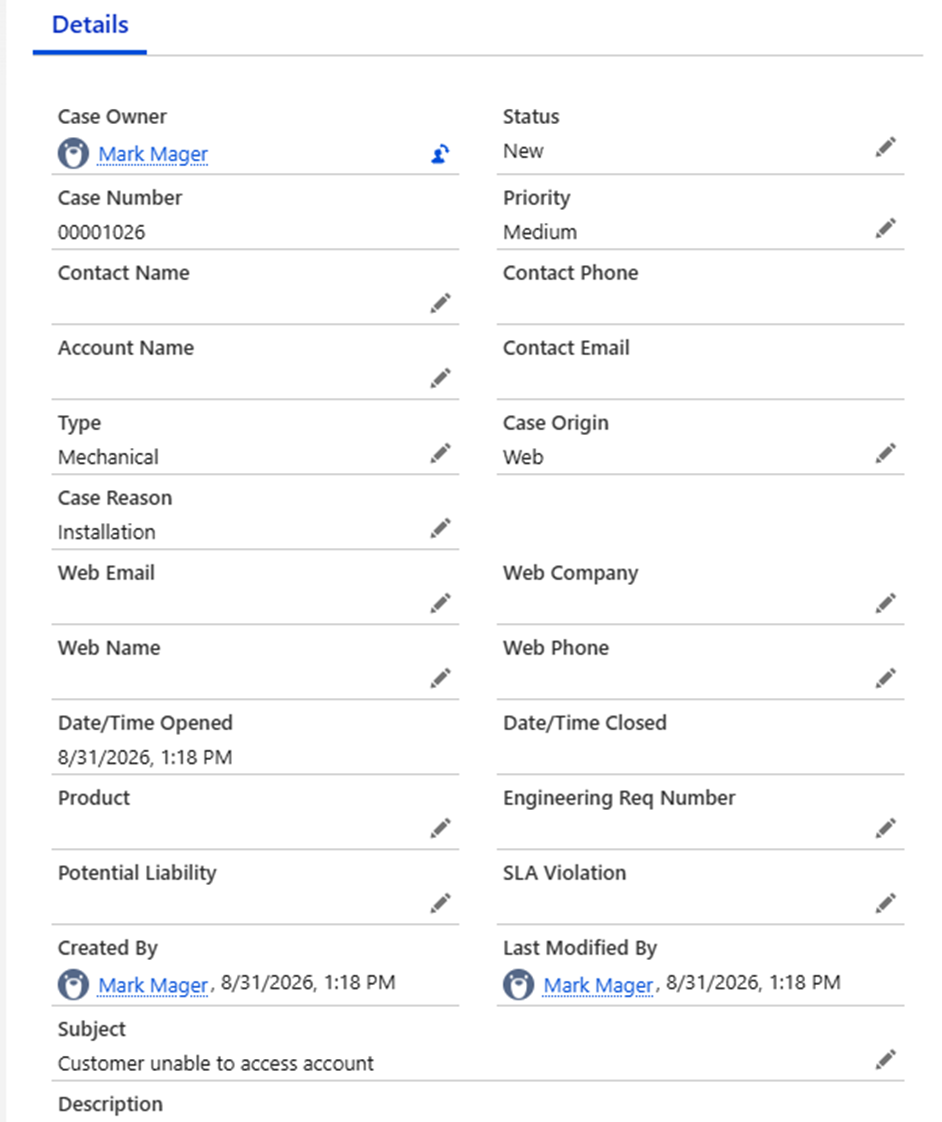
To test the automation, I created a Case with a Medium priority. Starting with Medium is important because the Flow is configured to run only when a Case is updated to meet the High-priority condition.
Next, I changed the Case Priority from Medium to High and saved the record.
The Flow ran automatically and created the Follow up on high-priority case Task for the Case Owner.
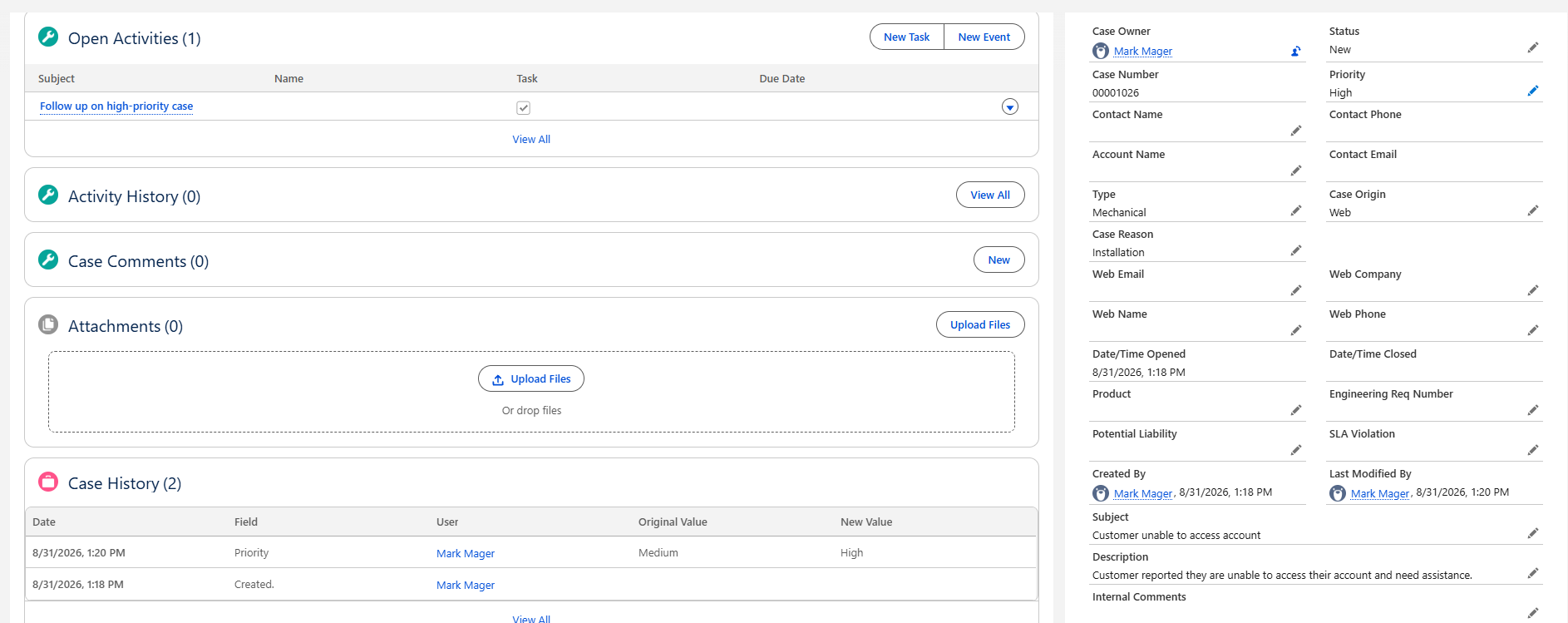
The Case History also confirms that the Priority changed from Medium to High, making it easy to verify that the Task was created as a result of the update.
Result
Case changes to High Priority → Flow runs → Follow-up Task is created → Task is assigned to the Case Owner
Before Putting It Into Production
Getting a Flow to work is only part of building good Salesforce automation.
Before deploying this example in a real org, I would also consider questions such as:
- What should happen if the Case changes from High to Medium and later back to High?
- Should every type of Case receive the same Task?
- Should the Task have a due date?
- Should different queues or owners have different rules?
- Is a Task the best action, or would an escalation or notification make more sense?
A small amount of planning before building can prevent a simple Flow from becoming unnecessary automation later.